Hype Text - Animated Text & In
- 4.6
- Rating
- 1.00M
- Installs
- Free
- Price

 Analysis by App-foxy
I usually reach for a text-animation editor when a normal caption feels too flat, but I do not always want the complexity of a full video-editing suite. Hype Text - Animated Text & In is aimed at that middle ground: it lets me turn words into moving visual elements for videos and pictures without making the whole process feel like a production job. After spending time with it, I see the appeal clearly. It is quick, focused, and much easier to approach than a traditional timeline editor.
The app is listed in the Video Players & Editors category and comes from cerdillac. It is free to install, with optional in-app purchases ranging from $1.99 to $9.99 per item. Its Everyone content rating also makes it suitable for a broad audience, although the best results still depend on having a little patience with timing, layout, and visual balance.
How Hype Text feels in its current form
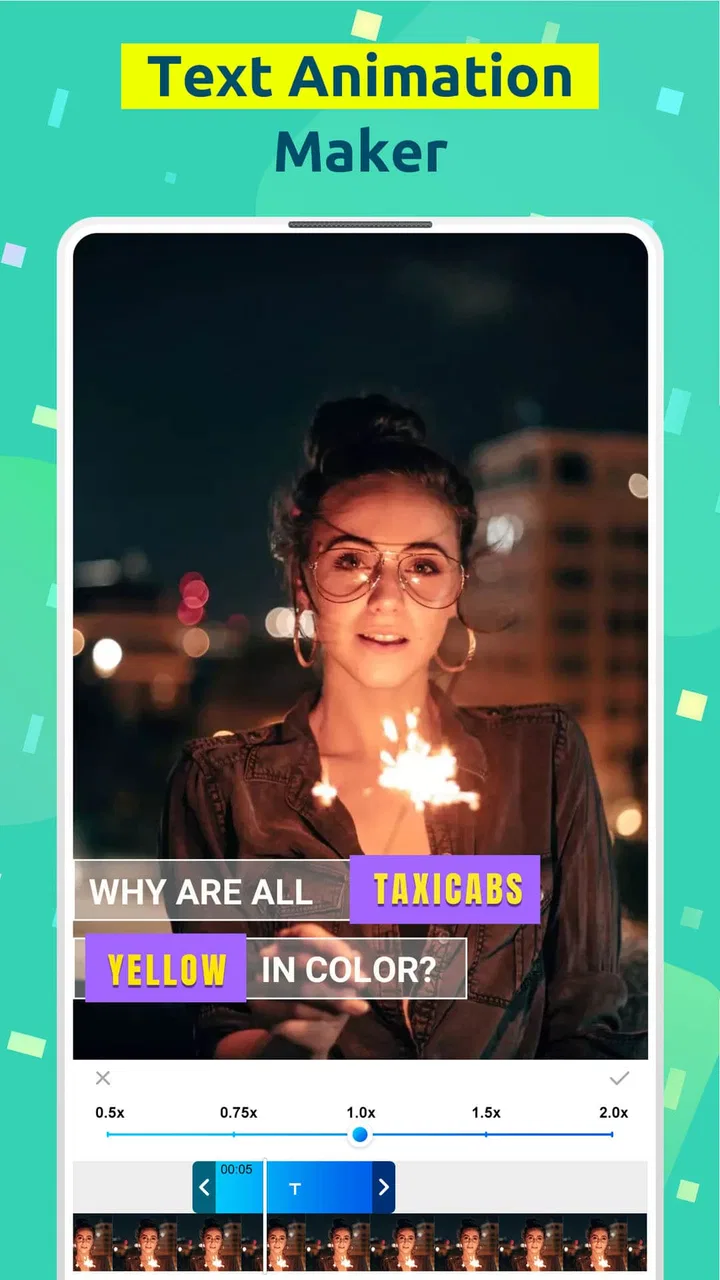
The main experience is built around adding animated lettering to visual content. That sounds simple, but it covers several practical situations: a short social post, a birthday image, a quick announcement, a quote card, or a small promotional clip for a personal project. Instead of learning a large collection of editing tools, I can concentrate on the message and how it enters, moves, or sits on the screen.
You May Also Like

 Blood Strike: 2.5 Anniversary
Blood Strike’s Loadouts Turn Every Drop Into a Tactical Gamble
A close look at Blood Strike’s custom loadouts: how fast access to signature weapons reshapes its battle royale rhythm, rewards preparation, and narrows the gap between fights.

 Pandora - Music & Podcasts
Pandora’s Music Is Easy to Start, but Harder to Recover
Pandora’s strength is its low-effort path from a seed to a station. Its weak spot is how much confidence it asks you to place in connection, setup, and quiet recovery.

 8 Ball Pool
 Is Built on Rivalries, Rematches, and Routine
A close look at the rivalries, rematches, shared routines, and unanswered safety questions that turn a quick pool match into a persistent mobile community.

 Samsung Music
’s Quiet Strength Is Playing What You Already Own
Its reach comes less from spectacle than from dependable access to a personal library. That simplicity is both the app’s strongest retention engine and its ceiling.

 AccuWeather: Weather Radar
AccuWeather Review: A Quick, Clear Forecast for Everyday Decisions
For everyday plans, the best forecast is the one you can understand quickly. AccuWeather makes rain timing, radar, and local conditions easy to act on, with a few trade-offs.

 Hill Climb Racing
Why Hill Climb Racing Still Turns Crashes Into One More Run
A tiny car, a bumpy hill and one more upgrade: Hill Climb Racing keeps resurfacing because its simple chaos makes every near-miss feel personal.
More From Our News Desk



That narrow focus is its strongest quality. A full editor often gives me trimming, transitions, audio controls, filters, stickers, and layers all at once. Those tools are useful when I need them, but they also slow down a simple job. With this app, the question is more direct: what should the text say, where should it appear, and how should it animate?
The store presents it as a text animation and intro-making tool for video and pictures, and that description matches the way I would use it. I would not install it expecting a complete replacement for a professional editor. I would install it when the words are the main visual feature and I want them to feel more alive than a static overlay.
The current version is 4.7.3, and the app runs on devices using Android 5.0 or later. That broad compatibility is useful for people who keep an older phone as a secondary device or do not upgrade regularly. At the same time, an older operating-system requirement does not automatically mean every export will feel equally fast on every phone. Animation work can still be more comfortable on newer hardware.
Its public reception is encouraging: it holds a 4.6 average from around 73 thousand ratings, with roughly 2.9 thousand written reviews and over a million installs. I treat those figures as a sign that the basic idea is working for many people, not as proof that every workflow will suit everyone. A quick caption creator can be excellent for one person and too limited for another.
The fastest workflow is also the most useful one
My preferred way to use Hype Text is to begin with the final message rather than browsing effects first. I write a short line, choose an image or clip that already has a clear subject, and then test the text against it. This prevents the common mistake of selecting an attractive animation that competes with the actual content.
Short phrases work particularly well. A few words can appear as a title, a punchline, a reminder, or a callout without covering the entire frame. Longer sentences are possible in this kind of app, but they usually need more careful placement and timing. If I have to shrink the lettering until it is difficult to read, the animation has stopped helping.
One useful habit is to leave empty space in the original image whenever possible. Text animation looks more intentional when it has room to breathe. A busy photograph may still be usable, but placing moving words over faces, signs, or important details makes the result feel crowded. Hype Text gives me a quick way to add movement; it cannot rescue a poorly chosen background.
I also find it more effective when I treat motion as emphasis rather than decoration. A gentle entrance can introduce a location or event. A stronger movement can suit an energetic announcement. Using several competing effects in one short piece usually makes the result harder to follow. The app encourages experimentation, but good editing still comes from restraint.
Where it fits into everyday content
Imagine I have taken a picture at a family gathering and want to send a short invitation for the next event. I can place the date or message over the image, give it a simple animated entrance, and share something that feels more personal than a plain text message. The task does not require a full editing project, and the finished result can be made while the idea is still fresh.
For a small creator, the same workflow can help with recurring posts. I might use a consistent text position for announcements, then vary the background and wording. That creates a recognizable style without requiring a complicated template system. The important trade-off is that consistency has to come from my own choices; a quick editor will not automatically create a complete brand system.
It can also be useful for intro cards. If I make short clips for a hobby channel or a private group, an animated opening title can give them a more finished feel. I would keep the intro brief, because viewers usually want to reach the actual content quickly. The app is best at making a small visual moment, not at building an elaborate broadcast package.
Another practical use is turning a still picture into a more noticeable social post. The image remains the foundation, while the moving words provide the reason to pause. This is especially helpful when the message is more important than the photograph itself, such as a sale notice, a schedule change, or a simple congratulations message.
What the app does better than a full editor
The biggest advantage over a conventional mobile video editor is concentration. In a full timeline-based app, I may need to create a project, import media, position a text layer, adjust its duration, choose an animation, and then navigate through several panels. Hype Text is more approachable when the desired result is simply animated wording on a visual.
That makes it a good first step for someone who finds professional-style editors intimidating. I can learn the relationship between text, timing, background, and movement without also learning a complete editing vocabulary. For students, casual creators, and people preparing occasional posts, that reduced friction matters more than having every advanced control.
It is also more suitable when I am working from a single picture. A timeline editor may feel excessive for a static image that only needs a moving caption. Hype Text turns that small job into its own workflow instead of forcing me to build a larger project around it.
Compared with a basic photo editor, it offers more visual energy. A standard caption tool can place words neatly, but animation changes how the viewer notices them. That difference is valuable for announcements and intros, provided the movement remains readable and does not distract from the image.
On the other hand, a full editor is the better choice when I need precise cuts, several video segments, detailed audio work, complex layering, or fine control over a long sequence. Hype Text should not be judged as though it were trying to compete feature for feature with those tools. Its strength is speed and focus, while the alternative wins on depth.
Small techniques that improve the result
My first practical tip is to design for the smallest screen where the content will be viewed. Text that looks comfortable while I am editing can feel cramped once it appears in a feed or messaging app. I keep the wording short, avoid placing it close to the edges, and check whether the main subject remains visible throughout the animation.
A second tip is to use the first frame as carefully as the final frame. If the text begins in an awkward position or appears too suddenly, the whole clip can feel unpolished even when the ending looks good. I test the opening several times and ask whether the viewer understands the message immediately, without waiting for the effect to finish.
A third insight is to separate hierarchy through timing. If I have a headline and a smaller detail, I do not make both move with equal intensity. The main phrase should receive the clearest entrance, while the supporting information can remain calmer. This gives a short composition a sense of order without needing a complicated layout.
I also recommend making a clean version before adding extra visual treatment. Once the basic text is readable, I can decide whether movement adds anything. This two-stage approach is faster than trying to repair an overloaded design later. It is particularly useful for users who enjoy experimenting with every effect available.
Finally, I would save a simple personal formula: one background, one main message, one supporting line, and one dominant movement style. Reusing that structure makes repeated posts faster and helps prevent visual inconsistency. The app becomes more valuable when it is part of a repeatable routine rather than a place to make a different experiment every time.
Where the current experience can be limiting
The same simplicity that makes Hype Text approachable can become restrictive once my project grows. If I want detailed control over several text elements, exact synchronization with spoken audio, or a carefully edited sequence of clips, I am likely to outgrow it. The app is convenient for focused compositions, but convenience is not the same as total control.
There is also a creative limitation in relying heavily on preset-style motion. Animated text can quickly start to look familiar if I use the most obvious effects without adapting them to the content. The solution is not necessarily more effects; it is better selection, shorter wording, and stronger attention to placement. Still, users seeking highly distinctive motion design may prefer a tool with deeper keyframe-style control.
Another point to consider is the free model. The app costs nothing to install, which makes trying it low risk, but optional purchases are part of the experience. I would test the free workflow first and decide whether the available tools already cover my needs before paying for anything. Someone who wants a completely unrestricted editing environment should examine the purchase prompts carefully before building a regular workflow around it.
Performance expectations should also be realistic. The Android requirement reaches back to version 5.0, but an app that works on an older operating system may still feel more responsive on a recent phone. Large media, animated previews, and exporting can place more demand on the device than simply browsing a gallery. If a project feels slow, reducing the complexity of the source material may help, but users with demanding projects may be happier elsewhere.
I would skip this app if my main goal is advanced filmmaking, detailed audio mixing, or long-form editing. I would also look for another option if I need a highly controlled visual identity across many different formats. Hype Text makes the most sense when the job is small, visual, and centered on animated words.
What its development suggests for existing users
The app was released on September 2, 2018, so it has had time to establish itself rather than appearing as a brand-new experiment. The current 4.7.3 version is the most relevant reference point for someone deciding whether to install it today. I see that history as useful context: the concept has remained focused on animated text instead of turning into an unfocused collection of unrelated editing tools.
For existing users, that focus is reassuring. A person who adopted it for quick intros or animated captions can continue using the same basic idea without needing to rethink the entire workflow. The practical benefit of an established app is familiarity: once I know how I like to position text and choose motion, creating another post becomes much quicker.
At the same time, version numbers alone do not tell me how every device or project will behave. I would judge an update by whether my normal export routine remains dependable, whether older projects still open as expected, and whether the editing process remains comfortable on my phone. Those are the checks that matter more than the number attached to the release.
New users should therefore begin with a small test project. I would use a short clip or an image, create one animated caption, and take it through the complete process before committing to a larger batch of content. This answers the practical questions that matter most: whether the interface feels natural, whether the visual style suits the intended audience, and whether the final result is easy to share.
Who should choose it and what to watch next
I recommend Hype Text to people who want animated captions without learning a full editing suite. It is a sensible fit for casual social posts, personal announcements, simple intros, and image-based messages where movement adds emphasis. Its free entry point, broad age rating, and focused workflow make it easy to try without turning a small creative task into a technical project.
I would be more cautious about recommending it to someone who already works with multi-layer timelines or expects precise professional control. In that case, a broader editor will probably save time in the long run, even if it takes longer to learn. The right choice depends on whether speed and simplicity matter more than detailed control.
For future use, I would watch how well the app preserves that balance as it evolves. New tools can be helpful, but extra complexity would weaken the reason I would choose it over a conventional editor. The most valuable improvements would be the ones that make text easier to control, keep exports dependable, and reduce friction without burying the central workflow.
My final view is positive but specific: Hype Text is strongest when the message is short and the animation has a clear job. I would use it for quick visual communication, not as my only video editor. If that matches what you need, the app offers a friendly way to make still images and short clips feel more deliberate. If your projects demand detailed timelines, advanced sound work, or highly customized motion, choosing a deeper alternative will be the more practical decision.
FAQs for Hype Text - Animated Text & In
01What is Hype Text - Animated Text & In used for?
Hype Text - Animated Text & In is designed for creating short, animated text videos and social media stories. You can type a message, choose an animation style, adjust colors, backgrounds, fonts, timing, and other visual options, then export the result as a video or image. It is especially useful for announcements, quotes, captions, promotional posts, and attention-grabbing story content.
02Is Hype Text - Animated Text & In free to download and use?
The application can generally be downloaded without an upfront charge, but some features may be limited to free users. Depending on the version and platform, premium templates, fonts, effects, export options, or removal of branding may require an in-app purchase or subscription. Before creating a large project, check the pricing screen and confirm which tools are available in the free version.
03Can I use Hype Text to create content for Instagram, TikTok, and other social networks?
Yes, the app is intended for creating mobile-friendly animated text content that can be shared on platforms such as Instagram Stories, TikTok, Snapchat, Facebook, and messaging apps. You can usually select a suitable canvas format and export the finished animation. However, platform requirements can change, so it is worth checking the selected aspect ratio and video quality before publishing.
04Does Hype Text work without an internet connection?
Many basic editing functions may work offline after the application and its available resources have been installed. However, an internet connection can be necessary for downloading additional templates, fonts, effects, advertisements, subscription verification, or sharing directly to online services. If you plan to edit while traveling, test the specific tools you need in advance because premium and cloud-related features may not be available offline.
05Are videos created with Hype Text free of watermarks and suitable for commercial use?
Watermark removal and commercial-use conditions depend on the selected plan, export settings, and the assets included in the project. Free exports may include branding or restrictions, while a paid option may unlock cleaner output and additional resources. If you intend to use animations for business advertising, client work, or monetized content, review the app’s current license terms and the rights attached to its fonts, music, templates, and graphics.
Pros
- Many animated text styles for eye-catching social media posts.
- Simple controls make creating text animations quick for beginners.
- Useful templates help speed up content creation.
- Exports are suitable for sharing across popular social platforms.
- Good option for adding motion to otherwise static images or videos.
Cons
- Some advanced styles and effects may require a paid upgrade.
- Exported content may include branding on the free version.
- Large animations can take extra time to render and save.
- The interface can feel crowded when browsing many effect categories.
- Frequent animated exports may use considerable storage space.

Hype Text - Animated Text & In
Gallery